
Managing your opened roles on VirtualStaff.ph is quick and easy. If you need to close a listing, you can do so directly from your dashboard. Follow the steps below to close an opened role.
Inactivate or Close a Created Role
1. Log in to Your Account: Ensure you are signed in to your employer dashboard.
2. Go to your Active Roles: Click on the "Active Roles" tab.
3. Locate the role listing: Scroll through "All Staff Roles" to find the role you want to close or inactivate.
4. Select "Inactive": Click on the last dropdown menu to change the status from Active to Inactive.
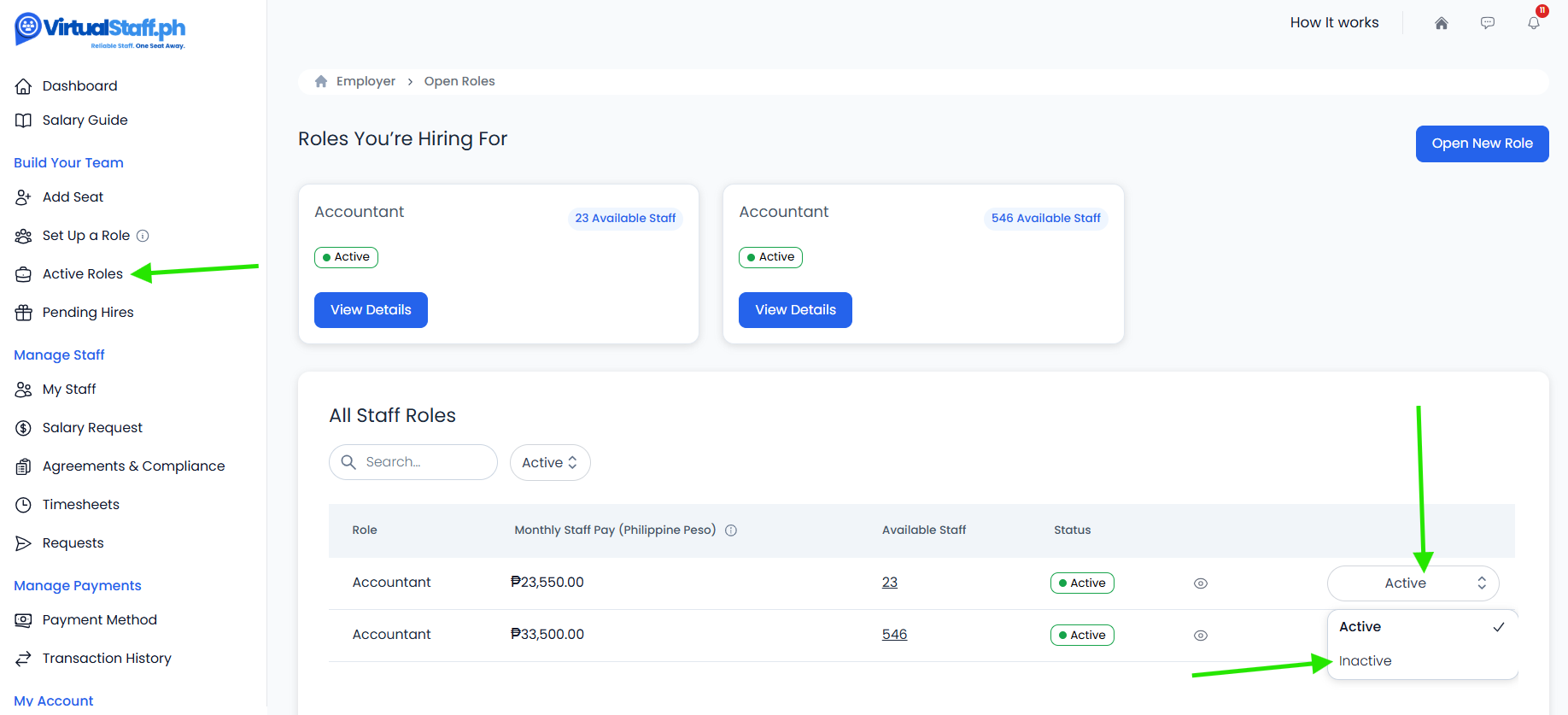
Once the role becomes inactive, it will no longer be visible in the list of roles for talents to express interest.
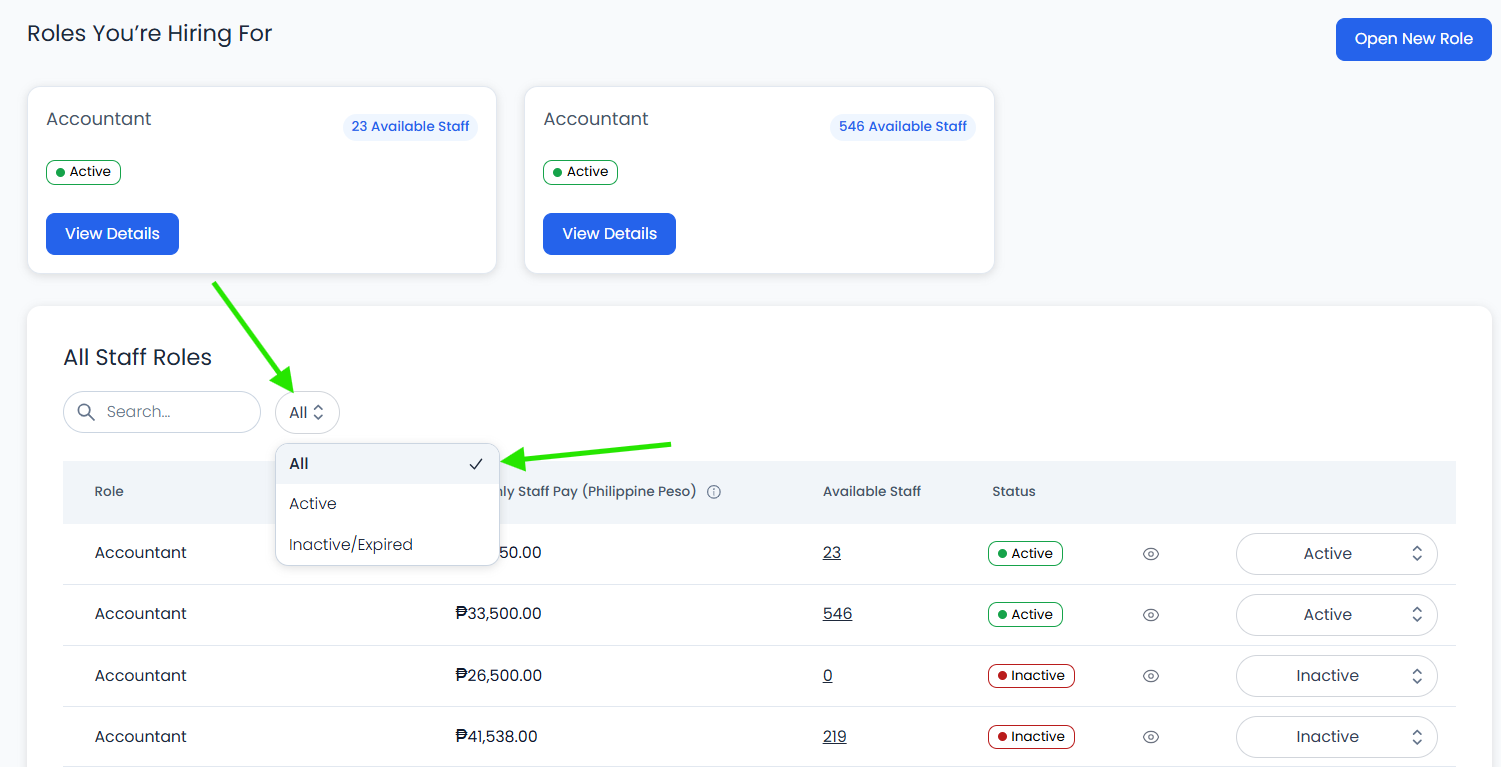
To see all past and current roles, simply use the filter option to show both active and inactive listings. Select 'All'.
For further assistance, feel free to contact VirtualStaff.ph support.